Record any Meet or Teams call. Keep every file.
vMeet runs in Chrome and saves the video, a word-for-word transcript, a summary and the action items to a folder you choose. No bot joins your call.
Free. Chrome on Windows and Mac. Transcripts use your own free Gemini key.
- Alex MorganThanks for joining. Let us start with the pilot.
- Priya ShahThe proposal is ready, I just need to add the new pricing.
- Sam LeeI can confirm the venue by tomorrow.
- Sam Lee: Confirm the venue
Click once. Get the whole meeting in writing.
Open your call and click Start recording
Use the banner in the call, the vMeet icon, or a keyboard shortcut you set in Chrome. vMeet records the call tab and your microphone. Other people see nothing.
Carry on with your meeting
Pause when you need to, and drop bookmarks at the moments you want to find again. Paused time is cut out.
Stop, and open your folder
The video is saved first. A few minutes later the transcript, summary and action items appear beside it as one file with the same name.
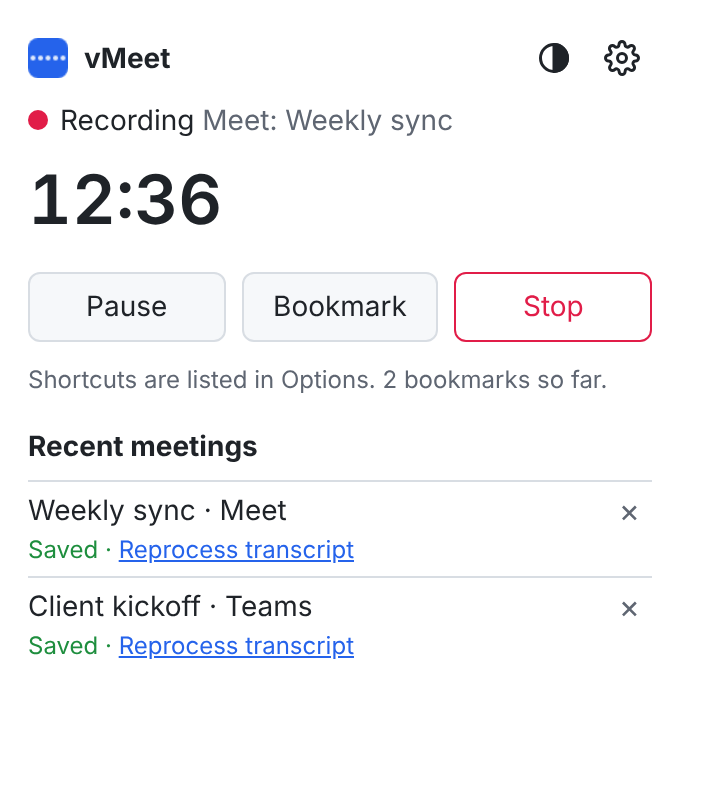
The vMeet popup during a recording.
What you get from every meeting
- Video with separate audio tracks
- One MP4 with a mixed track, a track of everyone else, and a track of you. Choose 360p, 540p, 720p or 1080p.
- Sound only
- Save just the audio as a small .m4a file, or skip the recording and keep only the transcript.
- More than 30 languages
- Pick the language of your meetings, or let vMeet detect it. The summary and actions follow.
- Transcript with speakers
- Timestamps and names, taken from the call page where available.
- Executive summary
- A short summary at the top of the file, so you can read it in a minute.
- Action items with owners
- If no one is named for a task, the person who spoke is listed as the owner.
- Pause and bookmarks
- Paused time is cut from the video and transcript. Each bookmark gets a short label.
- Your own file names
- Use the date, time, title and platform in any order, such as 2026-10-07_0930_Weekly-Sync_Meet.
- Safe if Chrome crashes
- A recording is written to disk as it goes and recovered when Chrome restarts.
- Back up your settings
- Save your settings to your folder or Drive and restore them on another computer.
- Light and dark
- Match your computer, or choose light or dark.
- A check for problems
- One button checks your save folder, Gemini key, microphone and shortcuts.
- An activity log you can read
- See what vMeet did and when, and whether you or vMeet did it.
Set it up your way
- Quick options in the toolbar menu: video or sound only, quality, and whether to include your microphone.
- Choose what to save: the recording, the transcript, or both.
- Turn the on-page reminder off, or let vMeet post a short recording notice in the call chat for you (off by default).
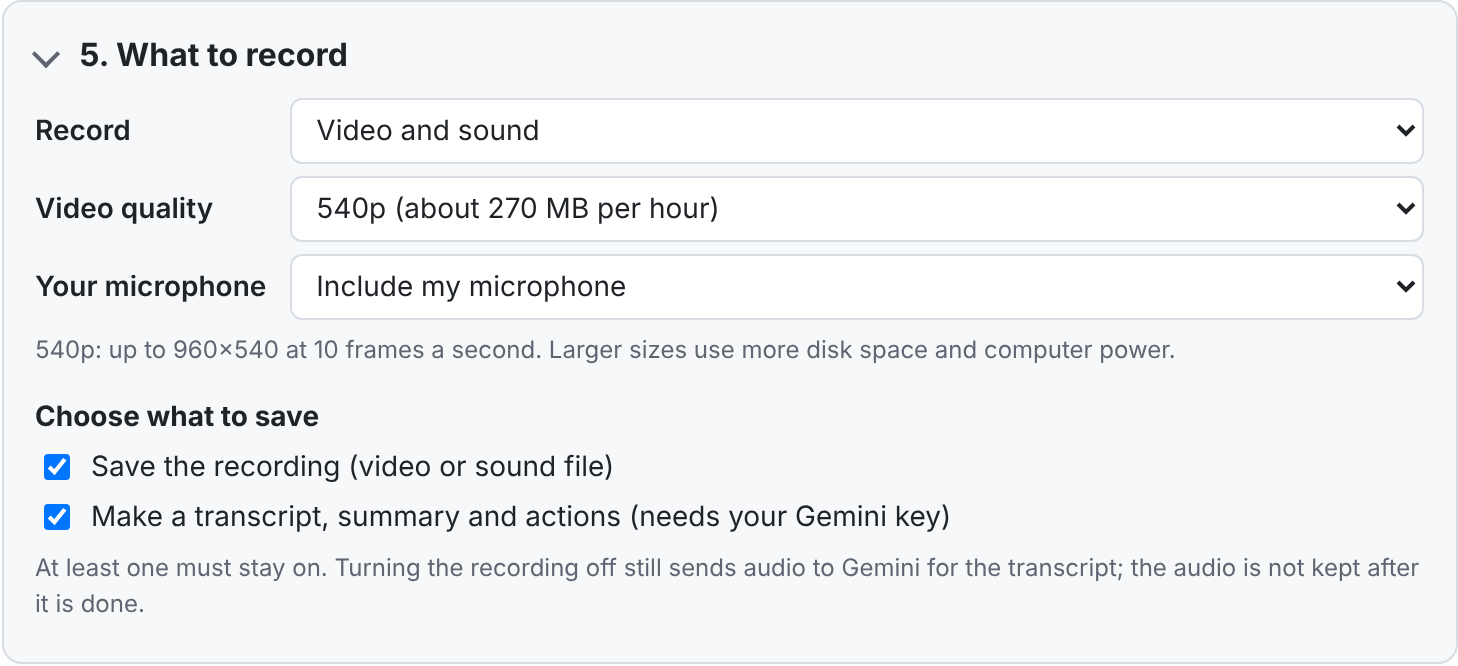
Recording options in settings.
Your files stay with you
vMeet has no servers. We never receive your recordings, transcripts or keys.
- Recordings go to a folder on your computer, or a vMeet folder in your Google Drive.
- To write the transcript, the call audio goes to Google Gemini using your own API key, and vMeet asks Gemini to delete it afterwards.
- Your Gemini key is stored on your device, encrypted.
- No analytics, no ads, nothing sold.
- Recordings are never deleted automatically. You decide what to keep.
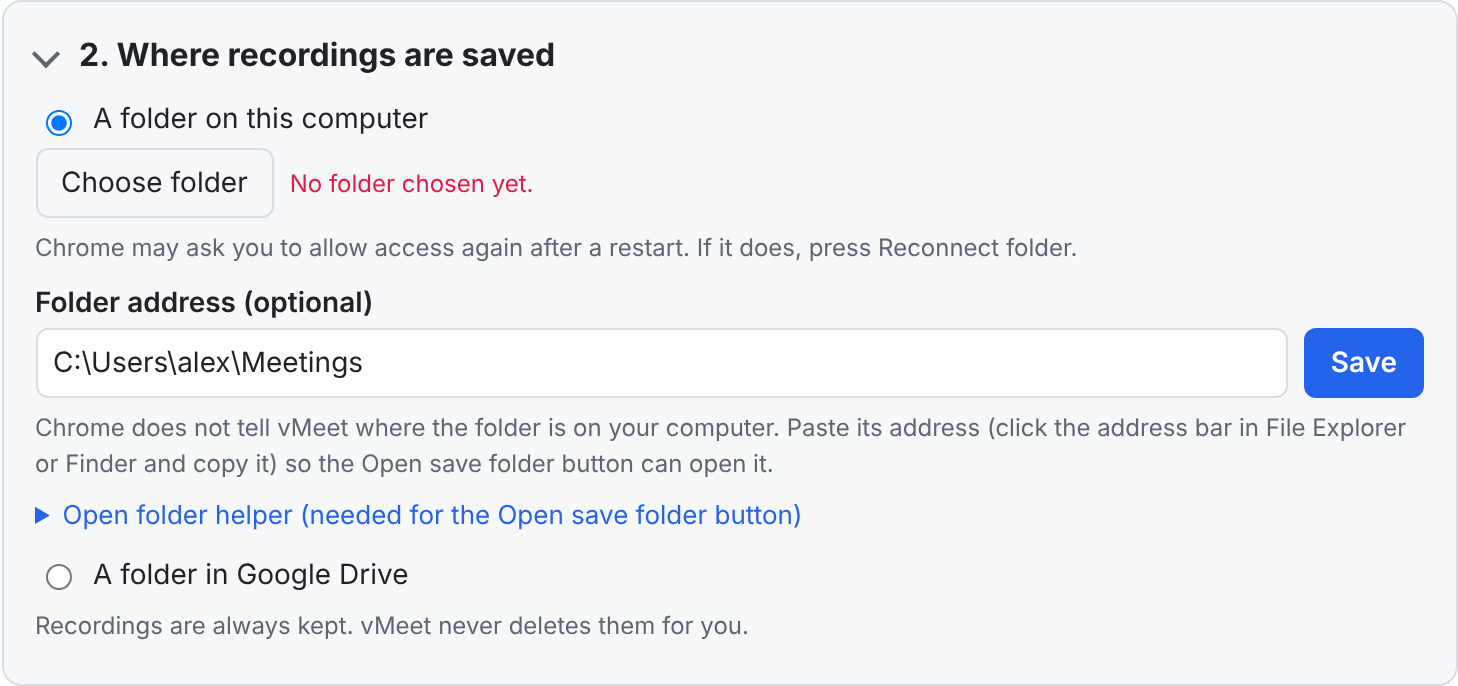
Choose the folder and name the files in settings.
Before you start
- Chrome on Windows or Mac, and a call in Google Meet or Microsoft Teams on the web. The Teams desktop app is not supported.
- A free Gemini API key from Google AI Studio. Paste it into vMeet settings once. Free-tier limits apply.
- Transcripts can be made in more than 30 languages, or detected automatically.
- Tell people you are recording. vMeet does not do that for you.
Questions
Does anyone on the call see that I am recording?
vMeet does not join the call and sends nothing to other participants. That also means it does not tell them. Recording rules differ between places and organisations, so tell people and get agreement where required.
Can it start recording by itself when I join?
No. Chrome only allows a tab to be captured after you click the extension or press a shortcut. When vMeet sees a call begin, it shows a prompt on the page and a badge on its icon, and one click starts the recording. You can turn the on-page reminder off in settings.
Does it work with Zoom or the Teams desktop app?
No. vMeet works with Google Meet and Microsoft Teams running in Chrome.
What does it cost?
vMeet is free. Transcripts use your own Gemini key, so Google's free-tier limits and data terms for that key apply.
Where are my recordings?
In the folder you chose, or in a vMeet folder in your Google Drive. vMeet can only see the files it creates in Drive.
How do I delete a recording?
Delete the files yourself in your folder or in Drive. vMeet never deletes them for you.
What happens if Chrome closes during a call?
The recording is written to disk as it goes. When Chrome opens again, vMeet recovers it and finishes saving.
How vMeet uses Google user data
If you choose to save to Google Drive, vMeet asks for the Drive permission that covers only files it creates itself. It uses that access to save your video and transcript to a folder named vMeet in your Drive, and for nothing else. vMeet does not read your other files, and does not share, sell or use your Google data for ads.
vMeet's use and transfer of information received from Google APIs adheres to the Google API Services User Data Policy, including the Limited Use requirements. See the privacy policy for details.